Touchscreen Display
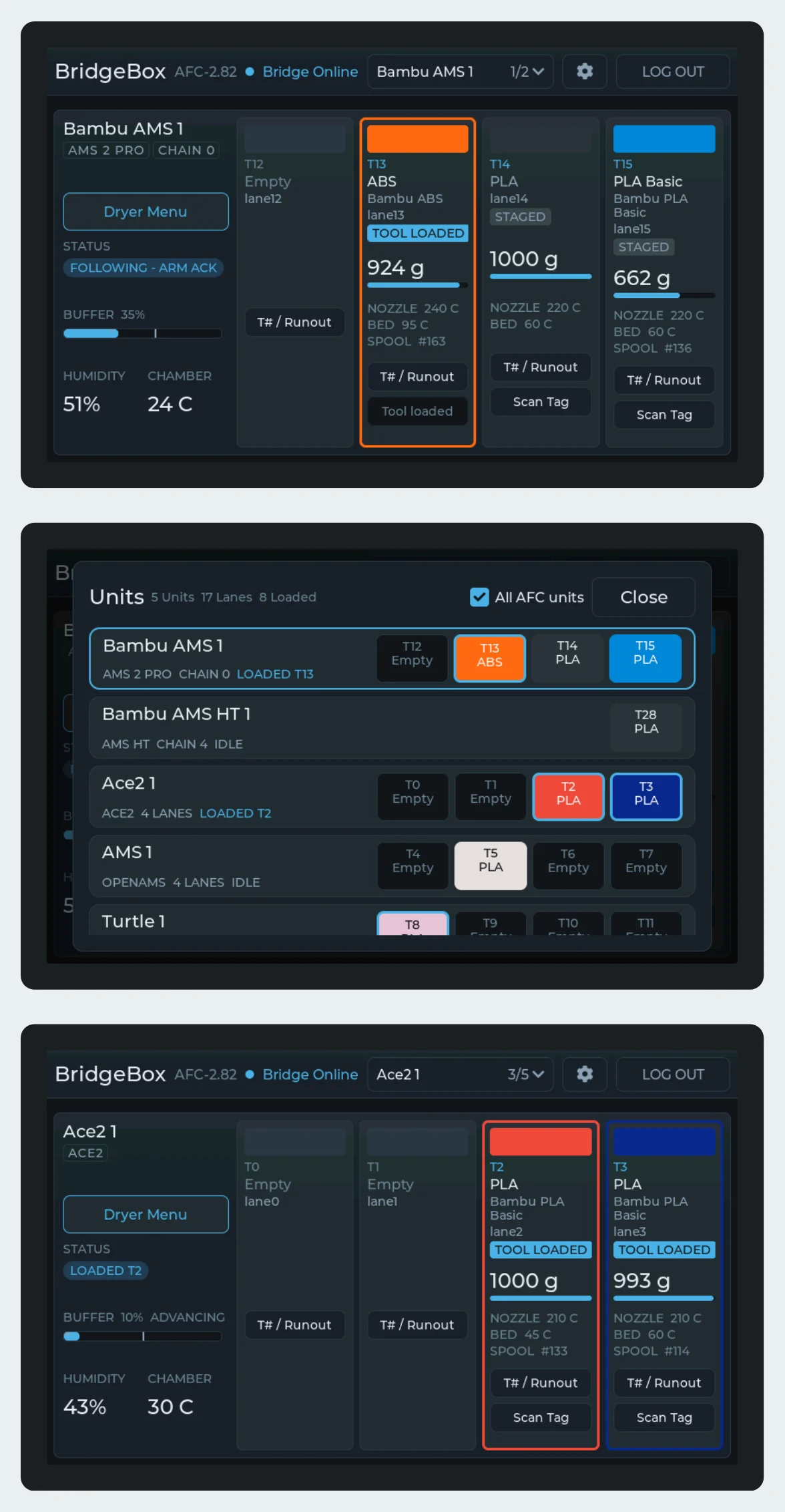
The BridgeBox display is an optional 5-inch touchscreen that shows what your units hold: each bay's color, material, weight and state, each unit's temperature and humidity, and the dryer controls one tap away.
It is firmware, not hardware. It is an image you flash onto a BTT K-Touch. A BTT Panda Touch is the same board under another name, so one left over from a Bambu printer works too.
Note
The display reads the printer through Moonraker over WiFi. It never touches the AMS bus, so unplugging it, even mid-print, changes nothing on the printer.
What it shows
- One unit at a time. The Unit button in the top bar names the unit on screen. Tap it for a list of every unit with its bays, then tap a unit to show it.
- Every bay. Each tile shows the filament, how full the spool is, its print temperatures and its Spoolman spool. Its T# / Runout button sets the tool number and the infinite-runout lane, from any lane on the printer, and Scan Tag reads the spool's tag.
- All AFC units. Tick All AFC units in the unit list and the printer's other AFC units join it: BoxTurtle, NightOwl, QuattroBox, EMU, HTLF, ViViD, ACE, ACE 2, OpenAMS and a toolchanger's tools. Each gets the same card, with its buffer when it has one.
- Dryer Menu. An AMS 2 Pro, AMS HT, ACE or ACE 2 card has a Dryer Menu: pick a temperature and time, then start or stop a cycle. It only offers what each unit accepts.
The files
Both are in Firmwares/BridgeBox_Display/ in the AFC-Klipper-Add-On folder.
| File | Flash at | Keeps saved WiFi and printer | Use it for |
|---|---|---|---|
bridgebox-full-0x0.bin |
0x0 |
No | The first flash, and recovery |
bridgebox-update-app-0x10000.bin |
0x10000 |
Yes | Every update after that |
First flash
This replaces the stock BTT firmware. You need a computer with Python and esptool (pip install esptool).
- Connect the panel's USB-C to the computer. It shows up as a CH340 serial port:
/dev/ttyUSB0on Linux, aCOMport on Windows,/dev/cu.wchusbserial...on a Mac. Use your port in place of/dev/ttyUSB0below. -
Check it is the right board. This only reads:
Look for
Chip is ESP32-S3and a 16 MB flash. -
Flash the full image:
The panel restarts into setup.
Tip
Newer esptool installs name the command esptool instead of esptool.py. The rest of the line is the same.
Setup on the panel
The panel walks through this on its first start:
- Choose your network and enter its password. Leave it blank for an open network.
- Moonraker address: the printer the BridgeBox is plugged into, for example
http://192.168.1.50. - Port:
7125unless you moved Moonraker. - API key: usually blank.
It saves, restarts and connects. The units appear by themselves once the printer reports them.
To move the panel to another network or printer, press Log out in the top bar and confirm.
Updating
Both ways keep the saved network and printer.
If a new version fails to start, the panel goes back to the version it was running.
What can go wrong
| The panel shows | Meaning |
|---|---|
No WiFi |
It cannot join the saved network. Log out and run setup again. |
No answer at that address |
The Moonraker address or port is wrong, or the printer is off. |
HTTP 401 -- API key? |
Moonraker does not trust the panel. Add the panel's network to trusted_clients under [authorization] in moonraker.conf, or log out and enter Moonraker's API key in setup. |
| No units | Check the units show online in Mainsail or Fluidd first. |
| Nothing, or it keeps restarting, after a USB flash | Flash the full image again. |